

Computer Hardware Repair Dundee
Your computer won’t start, keeps crashing, or runs so slowly you’re ready to launch it out the window. We diagnose and fix hardware faults at our Perth Road workshop. SSD upgrades, RAM, power supplies, overheating, motherboards. Transparent pricing, data protected, most repairs done same day.
 Google Reviews


Contents
Your computer won’t turn on. Or it does, but it takes four minutes to reach the desktop and another two before you can actually open anything. Maybe it’s crashing halfway through the day, freezing on a blue screen, or making a noise that sounds like something inside is about to give up entirely.
You don’t know if it’s fixable. You don’t know what it’ll cost. And you definitely don’t want someone telling you to buy a new one when the machine worked perfectly three months ago.
That’s the situation most folk walk in with at 153 Perth Road. A computer that’s let them down, a rough idea of what might be wrong, and no clue whether it’s a cheap fix or a write-off. We’ll tell you which it is before we touch anything. If the repair doesn’t make sense, we’ll say so. If it does, most hardware jobs are done the same day. Diagnostic first, honest quote, your call whether to proceed.
We’ve been fixing computers in Dundee for over 20 years. Desktops, laptops, all brands. Laptop repair, hard drive problems, data recovery when things go properly wrong. If it’s hardware, we’ve seen it.
Warning Signs Your Hardware Is Failing
Your computer usually gives you warning before something fails completely. The trick is catching it early enough that a quick repair stays a quick repair, rather than waiting until the hard drive is clicking its last and your files are at risk.
It won’t start at all. You press the power button and nothing happens. No fans, no lights, no beep. This is usually the power supply, sometimes the motherboard. If the fans spin briefly then cut out, that points to a different fault than complete silence.
It starts but won’t reach the desktop. Fans run, maybe you see the manufacturer logo, then it hangs or reboots in a loop. Could be a failing hard drive, corrupted boot sector, or a RAM stick that’s gone bad.
Blue screens and random crashes. If your computer suddenly restarts or shows a blue error screen during normal use, that’s almost always hardware. RAM is the most common cause, but overheating and a dying hard drive both do the same thing.
Strange noises. Clicking or grinding from inside the case means a mechanical hard drive is struggling. Loud fan noise that wasn’t there before means something is overheating and the cooling system is working overtime to compensate.
Everything runs painfully slowly. You haven’t installed anything new, you’ve cleared out old files, and it’s still crawling. When software troubleshooting doesn’t help, the hardware is usually the bottleneck. A failing hard drive reads data slower and slower as it deteriorates, and insufficient RAM forces Windows to use the hard drive as overflow memory, which makes everything worse.
If any of these sound familiar, get it looked at sooner rather than later. A failing hard drive caught early means we can clone your data to a new drive before it dies completely. A failing hard drive caught late means data recovery, which costs more and takes longer.
Common Hardware Faults We See
These are the jobs that come through the workshop most often. Not theoretical problems from a textbook. Actual faults, on actual machines, brought in by folk from across Dundee, Broughty Ferry, and the surrounding area.
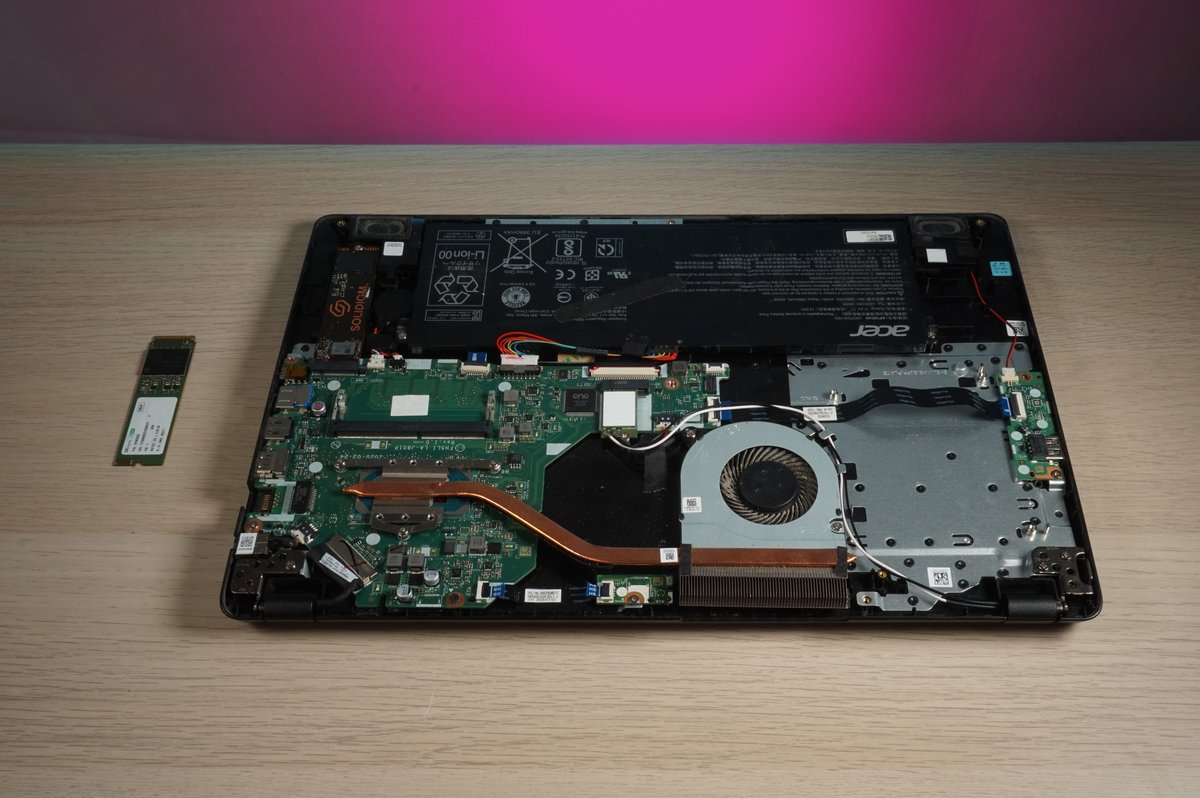
Hard drive failure. Still the single most common hardware fault we deal with. Mechanical hard drives have spinning platters and a read/write head that moves across them thousands of times a day. They wear out. When they start clicking, that’s the head struggling to read the platters. When they start running slowly, that’s bad sectors multiplying. The fix is straightforward: clone the data to a new drive (ideally an SSD, which has no moving parts) and the machine comes back faster than it was when it was new.
Fan failure and thermal shutdown. Your computer shuts itself down without warning, usually when you’re doing something demanding like video calls or running multiple programs. That’s the thermal protection kicking in because the processor has hit its temperature limit. Dust buildup in the heatsink and fans is the usual cause. A deep clean, fresh thermal paste, and replacement fans if needed will sort it. Laptops are worse for this than desktops because there’s less room for airflow.
Power supply failure. You press the button and absolutely nothing happens. No fans, no lights, nothing. The power supply converts mains electricity into the voltages your components need, and when it fails, the whole machine goes dead. Desktop power supplies are a straightforward swap. Laptop power issues are trickier because the charging circuit is part of the motherboard, so a “dead” laptop might be a simple charger replacement or something more involved.
RAM failure. Random crashes, blue screens, and programs closing without warning. RAM is your computer’s short-term memory, and when a stick develops a fault, the symptoms are unpredictable because it depends which bit of memory is damaged and what happens to be stored there at any given moment. We test RAM with dedicated diagnostics that run overnight to catch intermittent faults that a quick test might miss.
SSD Upgrades: The Single Best Thing You Can Do for a Slow Computer
If your computer is more than three years old and still has a mechanical hard drive, an SSD upgrade will make more difference than any other single change. It’s not a marginal improvement. It’s a transformation.
Boot times drop from two to four minutes down to fifteen to twenty seconds. Programs open in a fraction of the time. The whole machine feels like a different computer because the hard drive was the bottleneck holding everything else back.
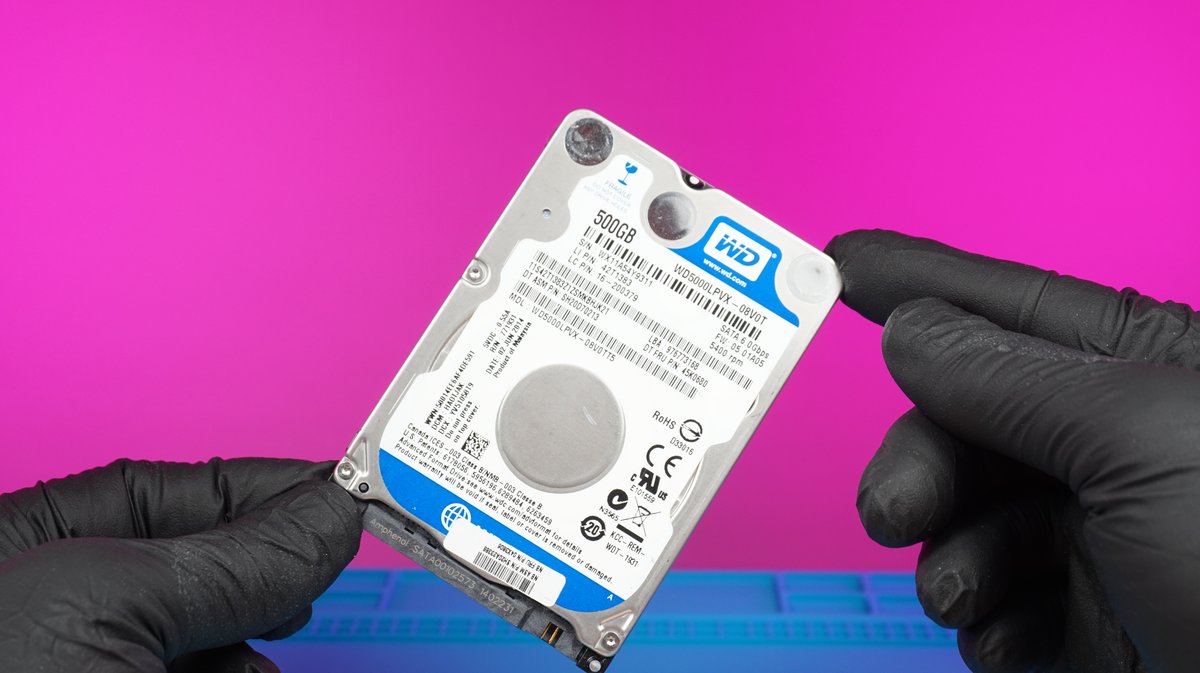
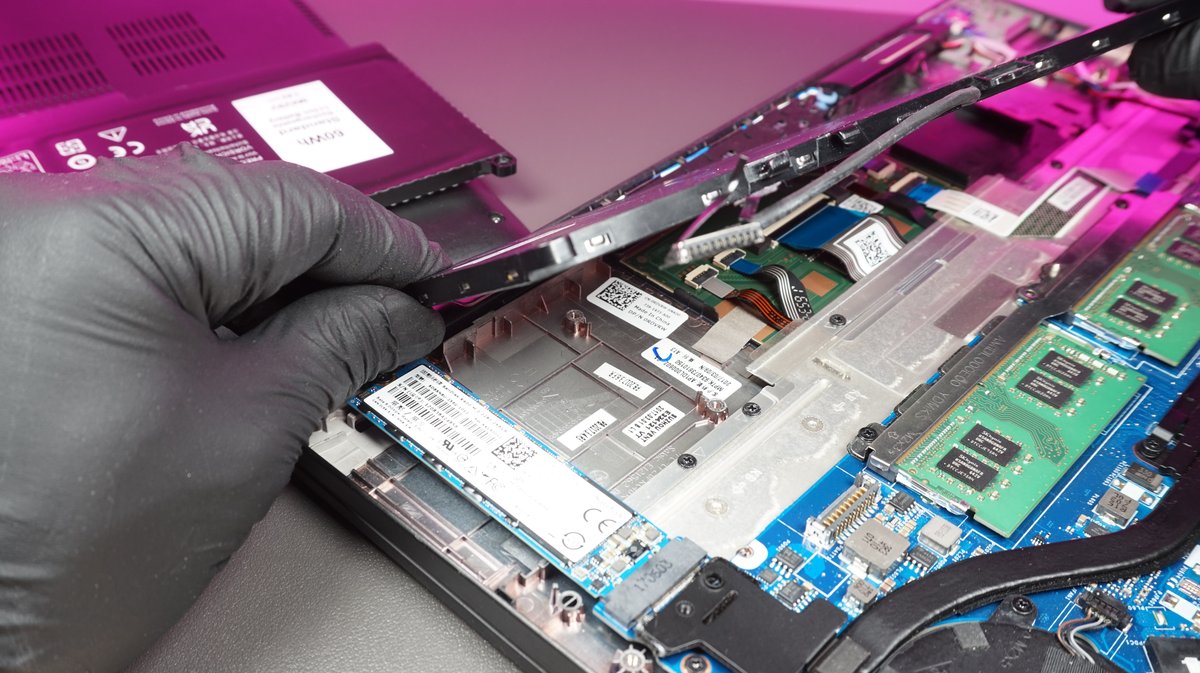
An SSD (solid state drive) has no moving parts. It reads and writes data electronically rather than mechanically, which makes it dramatically faster and also more reliable long-term. We fit both SATA SSDs (which go into the same slot as your old hard drive) and NVMe SSDs (which are smaller, faster, and slot directly into the motherboard).
The process takes about an hour for most machines. We clone your existing hard drive to the new SSD so that when you get your computer back, everything is exactly where you left it. Same desktop, same files, same programs, same passwords. Just faster.
An SSD upgrade is one of the most common jobs we do because the results are so obvious. Folk bring in a laptop they were ready to bin, we fit an SSD, and they walk out wondering why they didn’t do it two years ago.
If your computer is otherwise healthy but frustratingly slow, this is almost certainly the fix. Talk to us at 153 Perth Road or call.
Call 01382 217272RAM Upgrades: When Your Computer Can’t Keep Up
RAM is your computer’s working memory. It’s where everything you’re currently using gets held while you work on it. When you run out of RAM, Windows starts using your hard drive as overflow space, and your hard drive is hundreds of times slower than RAM. That’s when everything grinds to a halt.
The symptoms are specific. Your computer runs fine when you first turn it on, then gets progressively slower the more you do. Opening a new browser tab makes everything pause. Switching between programs takes seconds instead of being instant. The fans ramp up because the processor is spending most of its time managing memory instead of doing actual work.
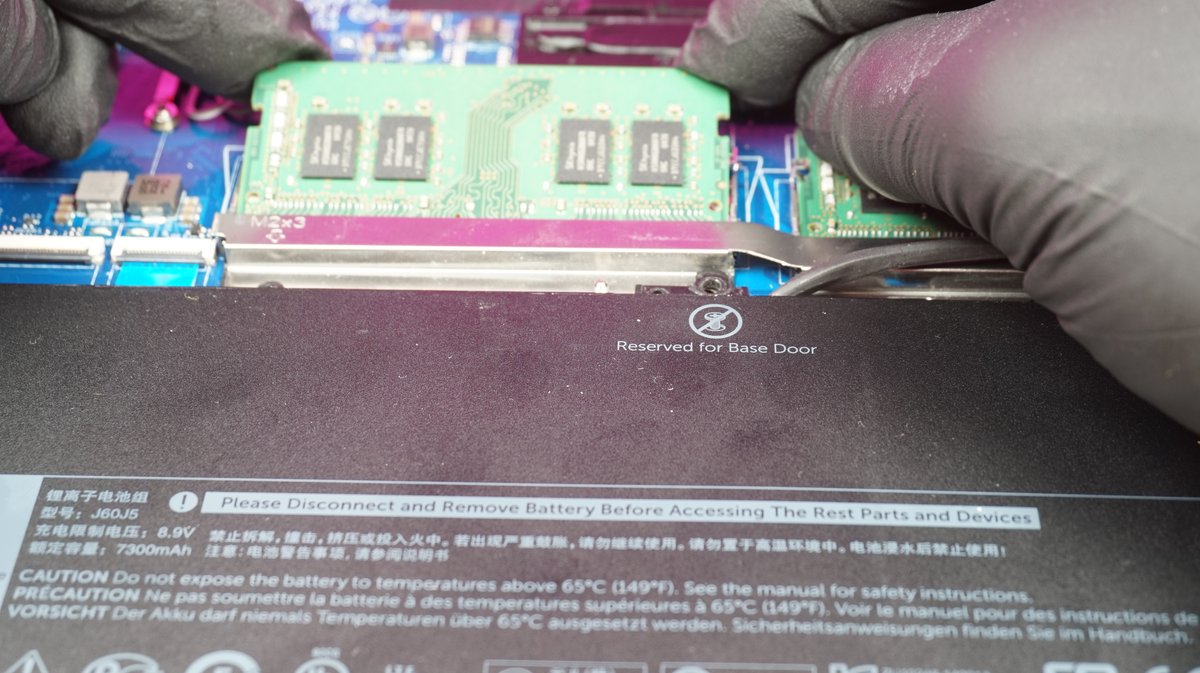
Four gigabytes of RAM was fine five years ago. It’s not enough for Windows 11. Eight gigabytes is the minimum for comfortable everyday use. Sixteen is where things start feeling properly smooth, especially if you keep a lot of browser tabs open or use memory-hungry applications.
We check your machine’s specifications, confirm what RAM it supports (type, speed, maximum capacity), fit the upgrade, and test for stability. The whole job usually takes under an hour. It’s one of the cheapest hardware upgrades available and one of the most noticeable.
RAM and SSD upgrades together are what we recommend when someone brings in a computer that’s technically working but driving them mad with how slow it’s become. The combination is cheaper than a new machine and the performance difference is dramatic.
Power Supply Problems and Overheating
These two faults account for a good chunk of the “my computer just stopped working” walk-ins we get. They’re different problems but they’re both about power and heat, and they’re both fixable.
Desktop power supplies are self-contained units that bolt into the case. When one fails, we test it, confirm the fault, and swap it for a replacement rated for your system’s power draw. The old PSU comes out, the new one goes in, all the cables get reconnected, and the machine boots up. Turnaround is usually same day if we have the right wattage in stock.
Laptop power issues are less straightforward. If your laptop won’t charge, it could be the charger itself (cheap fix), the charging port (moderate fix), or the charging circuit on the motherboard (more involved). We test all three before quoting so you know exactly what you’re dealing with.
Overheating happens gradually. Dust accumulates inside the case, coating the heatsink and fan blades. Thermal paste between the processor and heatsink dries out over a few years and loses its ability to transfer heat efficiently. The processor runs hotter, the fans spin faster to compensate, and eventually the machine either throttles itself to a crawl or shuts down completely to prevent damage.
A thermal service (full strip-down, compressed air cleaning, fresh thermal paste, fan replacement if worn) costs a fraction of what a new machine would cost and can add years of reliable use. We recommend it every two to three years for laptops and every three to four years for desktops, especially in dusty environments.
Motherboard and Component-Level Issues
Sometimes the problem isn’t a part that can be swapped out. It’s the motherboard itself. A blown capacitor, a failed voltage regulator, liquid damage that’s corroded traces on the board. These are the harder jobs.
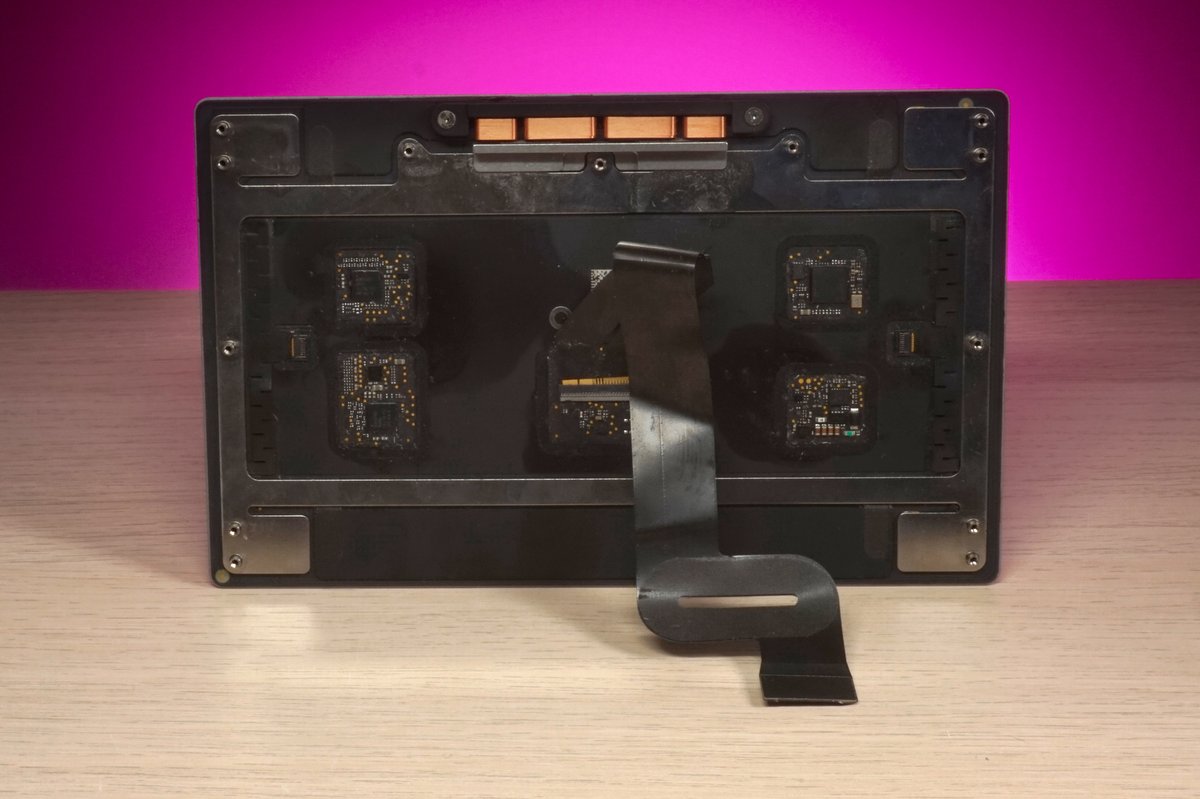
We’re honest about motherboard repair. On desktops, a motherboard replacement is usually practical because desktop boards are standardised and replacements are available. On laptops, the motherboard is specific to that exact model, and replacements (when they exist) can cost as much as a refurbished machine. That’s when the repair-vs-replace conversation matters most.
What we can do is diagnose exactly what’s failed. “The motherboard is dead” isn’t a diagnosis. Identifying which component on the board has failed tells you whether it’s repairable, replaceable, or genuinely the end of the road. We’ll give you that answer so you can make an informed decision rather than guessing.
For more complex board-level work, see our computer motherboard repair page. For liquid damage specifically on MacBooks, we have a dedicated MacBook liquid damage repair service.
Repair or Replace: How to Decide
This is the question everyone asks, and the honest answer depends on three things: the age of the computer, the cost of the repair, and what you actually use it for.
Under three years old: almost always worth repairing. Even relatively expensive fixes (screen replacement, motherboard swap) are justified because the rest of the machine has years of life left in it.
Three to five years old: depends on the repair. A straightforward fix (SSD upgrade, RAM, fan replacement, new power supply) is usually a no-brainer. A more expensive repair needs more thought, especially if the machine was entry-level when it was new.
Over five years old: worth repairing only if the fix is cheap and the machine still does what you need. An SSD upgrade on a five-year-old laptop can genuinely make it usable for another two to three years. A motherboard replacement on the same machine probably doesn’t make sense.
The half-price rule. If the repair costs more than half what a comparable replacement would cost, replacement usually makes more sense. We’ll tell you if we think that’s the case. We don’t benefit from repairing a machine that should be replaced, because you’ll be back in three months with the next thing that fails on a machine that’s past its useful life.
We also help with the transition if replacement is the right call. Data transfer from old machine to new, getting your programs reinstalled, making sure nothing gets lost in the process. That’s a service in itself, and it’s worth doing properly rather than trying to drag files across on a USB stick and hoping for the best.
What We Fix
Brands: Dell, HP, Lenovo, ASUS, Acer, Toshiba, Samsung, Apple Mac, custom-built PCs. If it’s a computer, we can work on it. Twenty-plus years means there isn’t much we haven’t opened up and fixed.
Systems: Windows desktops and laptops. macOS (MacBook, iMac, Mac Mini). We stock common parts for popular models and can source specific components within one to two working days for anything unusual.
Common jobs: SSD upgrades, RAM upgrades, hard drive replacement, power supply swap, fan replacement, thermal paste reapplication, screen replacement, keyboard replacement, charging port repair, data recovery, virus removal, operating system reinstallation.
For specific services, see desktop computer repair, laptop repair, computer memory upgrade, or computer screen repair.
What to Expect When You Bring It In
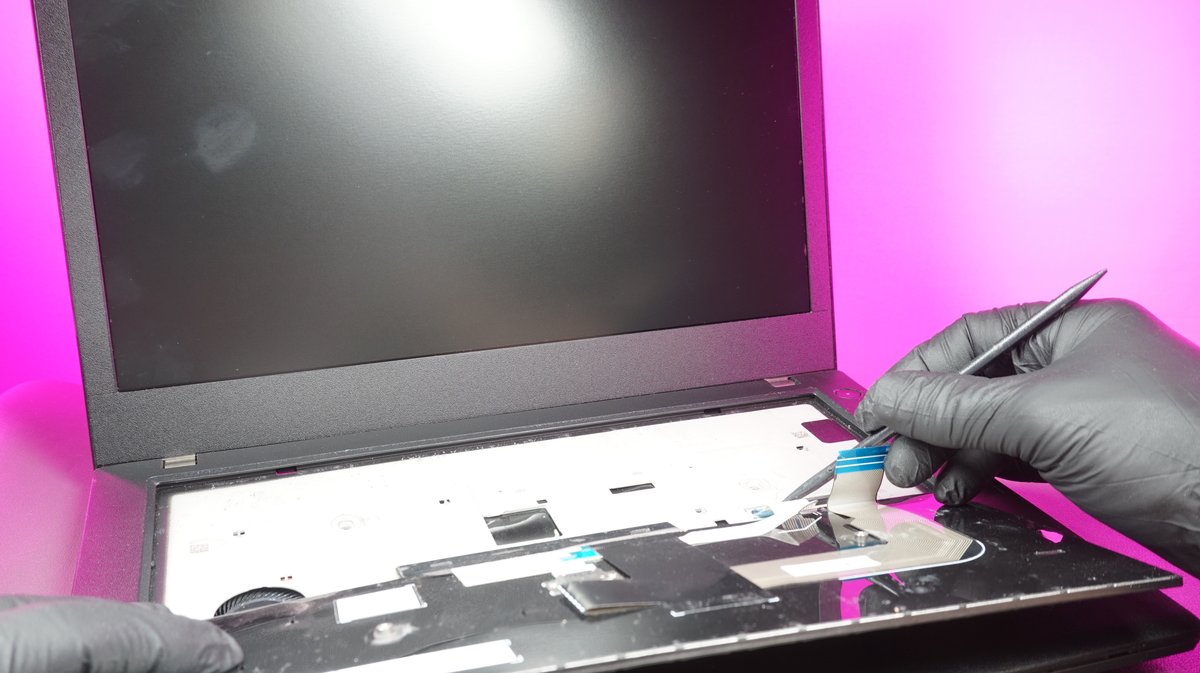
Step one: drop it off. Walk into 153 Perth Road during opening hours. No appointment needed. Tell us what’s happening and we’ll book it in. If it’s a desktop, you don’t need to bring the monitor or keyboard unless that’s the part causing problems. For laptops, bring the charger if you have it.
Step two: we diagnose and call you. We run a full hardware diagnostic. Not a five-minute glance. We’ll test the drive, check the RAM, monitor temperatures, inspect the power delivery, and look at the physical condition of the components. Once we know what’s actually wrong, we call you with a clear explanation and an exact price.
Step three: your call. You decide whether to go ahead. No pressure, no upselling, no making you feel stupid for asking questions. If the repair makes sense, we’ll get it done. If it doesn’t, we’ll tell you why and what your other options are.
Turnaround: most common repairs are done same day or next working day. If we need to order a specific part, two to three working days. We’ll give you a realistic timeframe when you drop it off.
Warranty: every repair comes with a 90-day warranty. If the same fault comes back within 90 days, bring it in and we’ll sort it at no extra charge.
Data protection: your files stay on your machine unless you specifically ask us to transfer or back them up. We don’t browse through your stuff. We don’t need your login password for most hardware repairs, but it helps for testing if you’re comfortable sharing it.
Computer on the blink? Drap it in tae our Perth Road workshop. Nae appointment needed.
Call Us