

Webcam Sales Dundee
Need a webcam? HD webcams for video calls, meetings, and streaming. In stock at our Perth Road shop. Plug in and you’re live.
 Google Reviews


Got a Teams call in an hour and no webcam? Or is your laptop camera so grainy that colleagues think you’re calling from 2005? We stock HD webcams at our Perth Road shop. Walk in, grab one, plug it into your laptop or desktop, and you’re ready for your next video call.
An external webcam makes a genuine difference to how you come across on video calls. Better image quality, better low-light performance, and you can position it at the right angle instead of being stuck with wherever your laptop screen happens to point.
Why You Need a Webcam
Desktop computers don’t have cameras. If you’re using a PC tower with a monitor, there’s no built-in camera. You need an external webcam for video calls, online meetings, job interviews, and anything that needs your face on screen.
Laptop cameras are usually poor. The camera built into your laptop lid is typically a tiny sensor crammed into a thin bezel. The image is grainy, the colours are washed out, and it falls apart in anything less than bright daylight. You can tell on a video call who’s using a built-in laptop camera and who’s using a proper webcam. The difference is obvious.
External webcams have larger sensors and better optics than laptop cameras. They gather more light, produce a clearer image, and handle low-light conditions (like a home office with a desk lamp) without turning your face into a pixelated mess.
Privacy matters. Some folk cover their laptop camera with tape when they’re not on a call. An external webcam with a privacy shutter gives you physical privacy without sticky tape residue on your screen. Close the shutter when you’re done, open it when you need it.
Working from home is permanent now. If you’re doing video calls regularly for work, university, or keeping in touch with family, a decent webcam is worth the investment. You wouldn’t show up to a meeting in person looking like a blurry photo. The same applies to video calls.
What We Stock
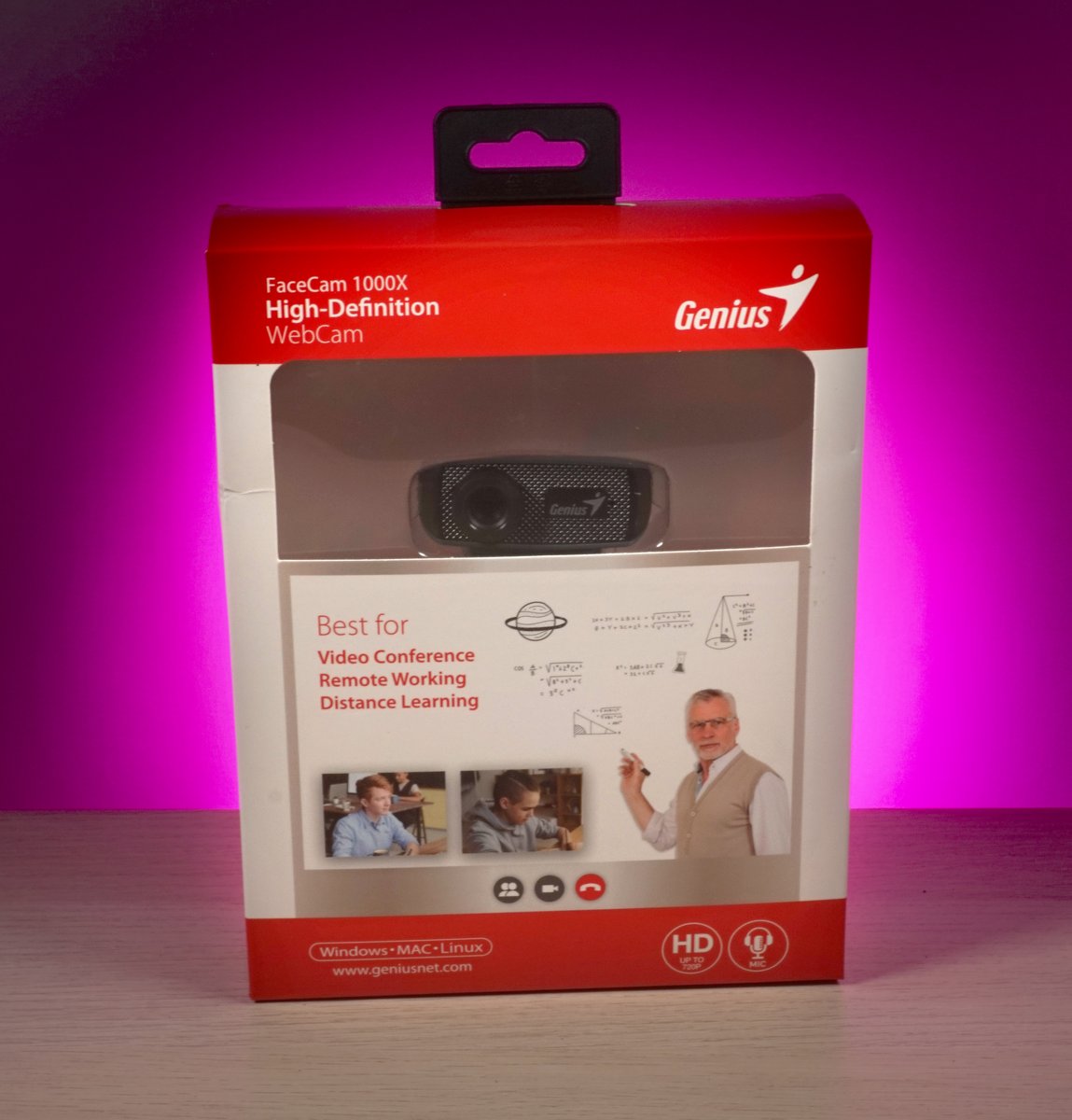
Genius FaceCam 1000X. HD webcam with 720p resolution and a built-in microphone. USB plug and play, so it works the moment you connect it. No drivers to install, no software to download. Compatible with Windows, Mac, and Linux. Designed for video conferencing, remote working, and distance learning.
The FaceCam 1000X clips onto the top of your monitor or laptop screen. Adjustable clip fits most screen thicknesses. The camera angle can be tilted to get the right framing for your face.
The built-in microphone handles voice for video calls. For most folk doing Teams, Zoom, or Google Meet calls, the built-in mic is fine. If you do a lot of calls or want better audio quality, pairing the webcam with a headset gives the best results because the mic is closer to your mouth and cuts out background noise.
We stock webcams at different price points. Budget options for occasional calls, mid-range for daily use. All better than a built-in laptop camera. Stock changes, so gee’z a shout on 01382 217272 if you’re after a specific model.
720p vs 1080p: Does It Matter?
720p is HD. 1080p is Full HD. Higher resolution means a sharper, more detailed image. But for video calls specifically, the difference is smaller than you’d think.
Most video call platforms (Zoom, Teams, Google Meet) compress the video anyway to save bandwidth. A 1080p webcam doesn’t send a full 1080p image to the person on the other end. The platform downgrades it. In Zoom’s own testing, most users couldn’t tell the difference between 720p and 1080p during a call.
Where 1080p makes a noticeable difference: recording video for YouTube or presentations, streaming, or any situation where the full resolution is preserved rather than compressed by a video call app.
For everyday video calls, a 720p webcam like the Genius FaceCam 1000X does the job well. It’s a clear upgrade over a built-in laptop camera, and the image quality is more than adequate for professional calls. If you’re recording content or streaming, 1080p is worth the step up. For calls, save your money and spend it on good lighting instead. Lighting makes more difference to how you look on camera than resolution does.
Looking Good on Camera
A good webcam helps, but how you set up your space matters just as much. A few simple changes make a big difference to how you come across on video calls.
Lighting is everything. Face a window if you can. Natural light from in front of you is the most flattering and free. If you can’t face a window, a desk lamp pointed at your face (not from behind you) works. The worst setup is a bright window behind you, because your webcam adjusts to the bright background and your face goes dark. If your colleagues can see your garden but not your face, move the light source.
Camera at eye level. Mount the webcam on top of your monitor so the lens is at or just above your eye line. This gives a natural, straight-on angle. If the camera is below you (on the desk), folk see up your nose. If it’s too high, you look like you’re being interrogated. Eye level is the sweet spot.
Background. A plain wall behind you is fine. A tidy bookshelf works too. An unmade bed, a pile of laundry, or a kitchen full of dirty dishes doesn’t make a great impression on a work call. If you can’t tidy the background, use a virtual background in your video call app.
Distance. Sit about an arm’s length from the camera. Too close and your face fills the entire frame. Too far and you’re a tiny figure in a big room. Head and shoulders in frame is what you’re aiming for.
Setting Up a Webcam
Plug the USB cable into your computer. That’s it. Windows and Mac both recognise webcams automatically. No drivers to install, no software to download. It just works.
In your video call app (Teams, Zoom, Google Meet), go to settings and select the external webcam as your camera source. Most apps detect it automatically and switch to it. If it doesn’t, look for “Camera” or “Video” in the app settings and pick the webcam from the dropdown.
If your computer has both USB-A and USB-C ports, most webcams use USB-A (the rectangular one). If your laptop only has USB-C ports, you’ll need a USB-A to USB-C adapter. We stock those too.
If you need help setting it up, bring your laptop in and we’ll do it for you in the shop. We’ll make sure the webcam works with your preferred video call app before you leave.
Why Buy In-Store
Need a webcam for a call today? Walk in and walk out with one. Plug it in and you’re live in minutes. No waiting for delivery, no missing your meeting.
You can see the build quality and size in person. Some webcams are bulkier than you’d expect from product photos online. We can also check that the webcam clip fits your monitor thickness before you buy.
If your computer needs fixing alongside getting a webcam (no USB ports working, software issues, sound problems for calls), we handle that too. Sometimes “my webcam doesn’t work” is actually a computer problem, not a webcam problem.
153 Perth Road, Monday to Friday 9:30 to 17:30, Saturday 10 to 17. Nae appointment needed.
Need a webcam? Drap in tae 153 Perth Road. Plug and play, sorted in minutes.
Call Us